Define the source and destination
Write down whether you are starting with video, a still image, recorded speech, or a script. Specify the intended framing and where the finished clip will appear; those details determine which workflow is relevant.
Workflow guide
The best lip sync alternative depends on what you already have: a filmed performance, a still image, or audio that needs a speaking face. Compare manual editing with AI-assisted video workflows before you commit to either.
Partner workflow: Vidione creates paid talking-avatar video from a photo, script and voice, or a single AI video shot after sign-in and subscription. It cannot change the speech or lip movements in an already recorded video. These links transfer no footage or prompt.
For an existing performance, begin with editing. For a new speaking scene, investigate generation—but check the available inputs and outputs before moving your project.
Explore how an AI-assisted video workflow differs from adjusting an existing performance.
See the considerations specific to starting with a still portrait rather than recorded footage.
Follow a planning checklist for recording, aligning, reviewing, and exporting a speaking video.
There is no universal replacement for every lip sync task. Identify the failure you need to avoid before comparing convenience or creative range.
A small, obscured, or sharply angled face may leave too little visible mouth detail for a convincing result. A still portrait also cannot supply the natural head motion of a recorded performance.
WorkaroundChoose a clear, front-facing source and review a short test before building the full scene.
Moving an audio track against filmed footage can correct timing, but it will not create words the performer never visibly spoke. Large changes in dialogue may expose that mismatch.
WorkaroundRecord a new take when exact delivery and facial continuity matter.
A convincing voice or face match does not establish permission to use someone’s likeness, recording, or copyrighted audio. The publishing channel may impose additional rules.
WorkaroundUse material you control and obtain consent for identifiable people.
A new workflow may change framing, timing, captions, or the way the finished clip fits a larger sequence. Do not assume an existing project transfers unchanged.
WorkaroundKeep the original media and timeline; test one short segment against the final delivery requirements.
A small, repeatable trial tells you more than a feature list. Use the same brief to assess each candidate alternative.
Write down whether you are starting with video, a still image, recorded speech, or a script. Specify the intended framing and where the finished clip will appear; those details determine which workflow is relevant.
Select a brief line with visible consonants and a pause. Edit or generate that segment, then watch it with sound, muted, and at normal playback speed. Check mouth timing, facial stability, and whether the voice still fits the scene.
Before replacing your current process, confirm the candidate tool’s current input options, export options, usage terms, and access requirements. Save the original assets so you can return to the previous workflow.
Use this table to narrow the choice, not to predict a guaranteed result. The best lip sync alternative is the one that preserves the qualities your particular scene needs.
Manual video editing
Works from footage that already contains a visible performance.
AI-assisted video workflow
May support a portrait, video, audio, or text, depending on the tool; verify its accepted inputs.
Manual video editing
An editor can place audio and adjust cuts frame by frame.
AI-assisted video workflow
Timing may be produced by a model, with the degree of manual adjustment varying by tool.
Manual video editing
Best when the filmed mouth movements are reasonably close to the intended words.
AI-assisted video workflow
Worth testing when the desired line was not performed on camera.
Manual video editing
Retains the photographed face and its original motion.
AI-assisted video workflow
May change details or motion; inspect the face across the entire clip.
Manual video editing
Changes involve timeline work, replacement takes, or both.
AI-assisted video workflow
A revised input may produce another version, but consistency between versions needs review.
Manual video editing
Depends on the recording and any audio processing in the edit.
AI-assisted video workflow
Still depends on clean source audio or the quality of a separate voice workflow.
Manual video editing
Align one filmed sentence and examine difficult syllables.
AI-assisted video workflow
Try one permitted source and review mouth motion, identity, and export suitability.
Your role matters less than the asset you need to preserve. These examples point to more focused guidance for common projects.
You have a recorded presenter and a replacement voice track, but want to keep the original camera performance.
Start with timeline alignment; use the linked guide to plan a lip sync video from source selection through final review.
how to create a lip sync videoYou have permission to use a clear still image and need to assess whether it can anchor a speaking scene.
Test facial stability before changing the whole project; the linked page covers the still-photo starting point.
photo lip sync video makerYour character is drawn or modeled, and matching its mouth shapes matters more than preserving camera footage.
Consider a character-specific process; the linked guide examines lip sync animation as a distinct task.
lip sync animationYou are preparing a performance clip whose timing must hold up on a small screen.
Check pacing and readability in the destination format; the linked page focuses on lip sync for TikTok.
lip sync tiktokPlace candidate frames beside your current result, then watch both full clips. A still frame can reveal visual changes but cannot establish timing quality.
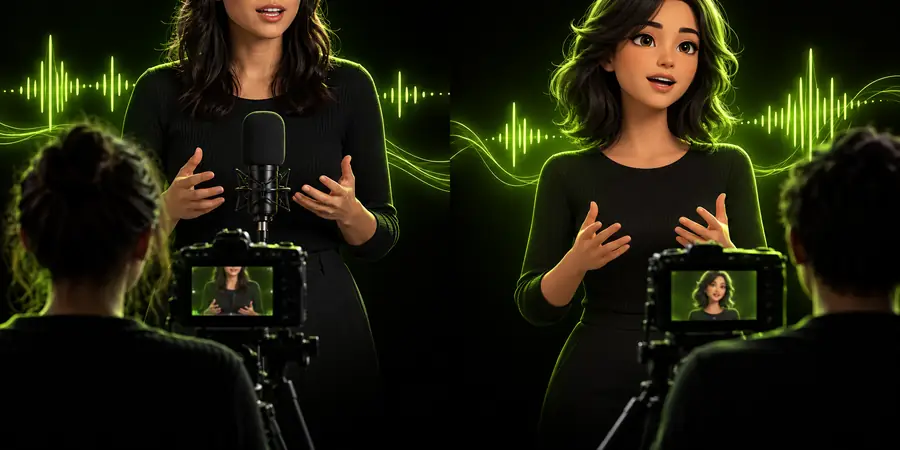
These are illustrative site images, not matched frames, product outputs, or evidence of a measured before-and-after result. In your own test, compare the same speaker and line across both workflows.
Keep your original footage, audio, and edit intact. Choose one representative line, document what a successful result must preserve, and check the destination tool’s current capabilities and terms. If the test improves the scene without introducing distracting face changes or an unsuitable export, expand gradually. If it does not, the original edit remains your fallback.
An AI-assisted video workflow is worth testing when you lack a suitable filmed performance or need to explore new dialogue. If you already have a strong take and require exact control over cuts and timing, manual editing may remain the better fit. Judge both using the same short line and your actual delivery requirements.
It can offer another way to develop a speaking scene, but it does not automatically reproduce the nuances of a particular filmed take. Watch for shifts in facial detail, expression, and mouth motion across the whole clip. Record a new performance when those qualities must remain exact.
It may be useful when a permitted still portrait is your only visual source. A photo does not contain natural speech motion, so assess the generated movement rather than treating the portrait alone as proof of quality. Check the tool’s accepted inputs before planning around that approach.
Compare source compatibility, visible mouth timing, facial consistency, audio quality, export suitability, and usage terms. Test a short passage that includes clear consonants and a pause. Keep your original files until you have reviewed the exported clip in its intended context.
Not necessarily. If the problem is a simple offset between an otherwise matching recording and performance, adjusting the timeline may be the most direct fix. Consider a different workflow when the visible speech itself does not match the intended line.