Lipsync
Create a video
English

Character animation

Plan a Scene With a Lip Sync Animation Generator

A lip sync animation generator can help turn recorded speech into a starting point for mouth movement. Prepare a clear voice track and a character with a visible face, then review the timing before using the result.

Partner workflow: Vidione creates paid talking-avatar video from a photo, script and voice, or a single AI video shot after sign-in and subscription. It cannot change the speech or lip movements in an already recorded video. These links transfer no footage or prompt.

Describe your scene

Vidione generates a talking avatar from a photo, script and voice after sign-in and subscription; it does not re-dub existing video. This guide transfers no footage or prompt.

Free to start · no signup Create a talking avatar
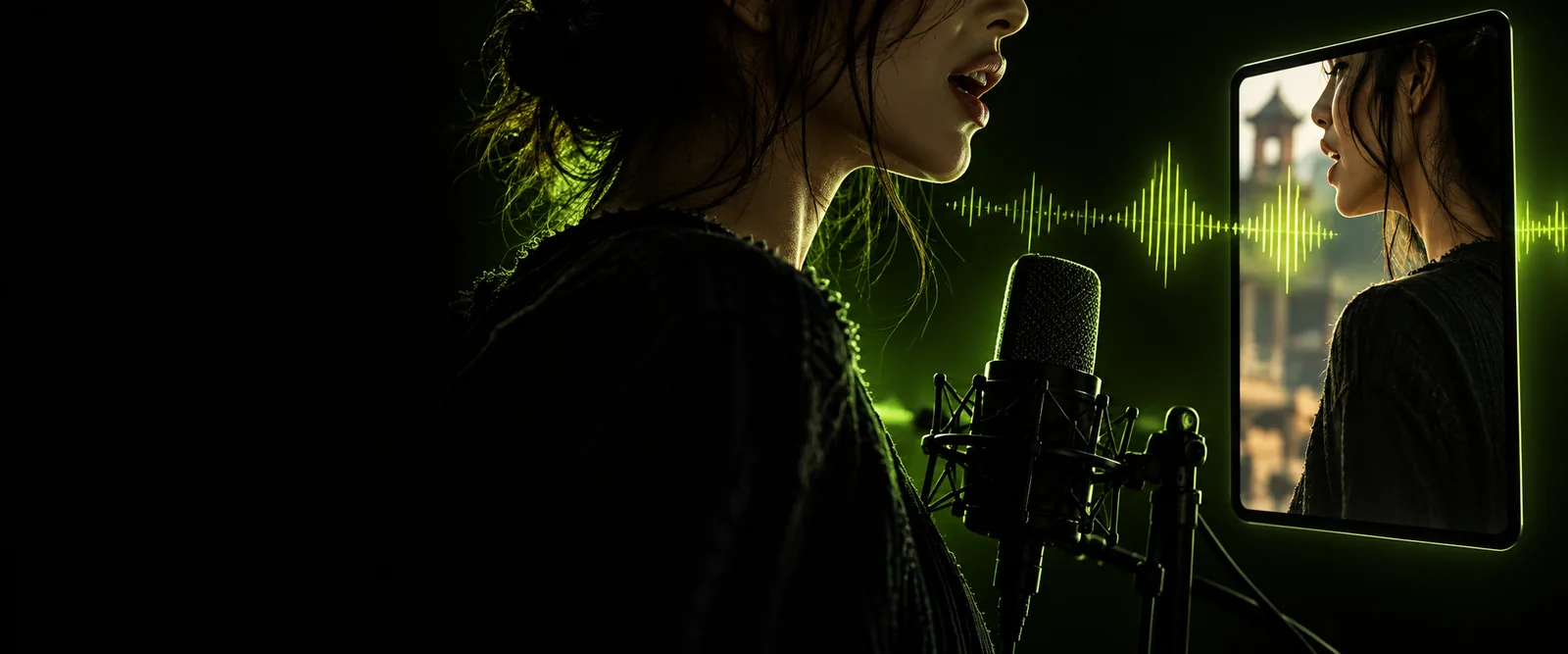
Lipsync landing visual showing a character-focused video scene

One voice track, several creative starting points

The useful output depends on the source: an illustrated character, a still portrait, and filmed footage each pose different lip sync problems.

Character animator

You have a drawn character and a short line of dialogue but have not timed the mouth poses.

Use generated movement as a timing reference, then adjust expressions and poses to suit the character design. The lip sync animation guide covers decisions specific to illustrated characters.

lip sync animation


Video editor

A filmed speaker needs mouth movement checked against replacement speech.

Treat this as a footage-editing task rather than a character-rig task. Lip sync video AI explores that separate workflow and the visual checks it needs.

lip sync video ai

Portrait storyteller

You want to test whether a single face image can carry a spoken message.

Start with a sharp, front-facing portrait and restrained head motion. A photo lip sync video maker starts from a still image, not an animation rig.

photo lip sync video maker

First-time creator

You need to record dialogue and decide how the character should perform it.

Plan pauses, framing, and a short test line before attempting a longer scene. The guide on how to create a lip sync video walks through those preparation choices.

how to create a lip sync video

Three mechanisms behind a convincing result

Good lip sync is not just an open-and-close motion. It combines understandable speech, plausible mouth shapes, and a performance that holds together between words.

Isolate the spoken line

Choose dialogue with little background noise and leave a brief pause at either end. Clear consonants make the boundaries between mouth movements easier to judge against the audio.

Match shapes to sounds

Watch for closed lips on sounds such as M, B, and P, and a wider opening on stressed vowels. Not every syllable needs a separate pose; transitions should feel continuous.

Check the whole performance

Play the scene at normal speed, then inspect awkward frames. Facial expression, blinks, and head movement can expose a mismatch even when the mouth appears close to the track.

Where generated timing helps, and where it stops

A generated first pass and manual character work solve different parts of the same scene. Compare them before committing to a longer sequence.

Generated first pass Manual animation pass
1

Starting point

Generated first pass

Speech and a usable character or face source

Manual animation pass

Speech, a character design, and editable mouth poses

2

Initial timing

Generated first pass

Provides a draft to review against the voice

Manual animation pass

Animator places and adjusts each important pose

3

Stylized expressions

Generated first pass

May need correction to match an exaggerated design

Manual animation pass

Can be shaped deliberately for the character

4

Unclear audio

Generated first pass

Can produce uncertain or misplaced mouth changes

Manual animation pass

Can be interpreted by listening and reviewing context

5

Performance direction

Generated first pass

Needs a separate review for emotion and emphasis

Manual animation pass

Allows deliberate choices about pauses and reactions

6

Best role

Generated first pass

Establishing a lip sync timing reference

Manual animation pass

Refining the final acting and visual consistency

See the difference timing makes

Use a before-and-after check to focus on the relationship between the spoken line and visible mouth movement, not just the appearance of a single frame.

Before timing review

Character animation reference for reviewing an untimed speaking pose
Character scene reference for reviewing mouth movement against speech
After timing review

Illustrative scene references, not a verified output pair. To judge lip sync, play your own clip with audio and check several consecutive frames around consonants and pauses.

Limits that still need a human eye

A generator cannot confirm that a voice, face, and acting style belong together. Build a review pass into the workflow.

Noisy speech can confuse timing

Music, overlapping voices, and muffled consonants make it harder to identify when a mouth should close or change shape.

WorkaroundUse a cleaner voice recording where possible, or mark difficult words for manual review.

A hidden mouth cannot show clear articulation

Strong profile views, hands in front of the face, and very small faces leave little visual information for a lip sync check.

WorkaroundChoose a clearer angle or cut to a shot where the mouth is visible during important dialogue.

Timing is not the whole performance

Technically aligned mouth movement can still look flat if expressions and pauses do not match the line.

WorkaroundReview the scene at normal speed and adjust emphasis, reactions, and transitions.

Output suitability depends on the tool

Available inputs, editing controls, and export options vary. This page cannot guarantee that a particular rig or file will be accepted.

WorkaroundCheck the destination tool's current requirements before preparing a full project.

Start with one short line

Test the scene before building the sequence

At Vidione, use a still portrait, short script and selected voice to make one talking-avatar clip after subscribing. It does not import a voice recording for rigged character animation; review the generated speech and expression before editing in a separate tool.

  • Begin with a short, clearly spoken line
  • Keep the mouth visible during key words
  • Check the result with audio at normal speed

Lip sync animation generator FAQ

It helps create mouth movement intended to follow spoken audio. The result is best treated as a first pass: watch the full clip to see whether the shapes, timing, and expression support the dialogue.

You need a spoken reference to evaluate timing, whether you record it yourself or obtain it through another workflow. Written dialogue alone does not tell you exactly how a performer will pace or emphasize each word.

A still portrait calls for a different source-image workflow than an editable character rig. Start with a clear face and check whether the resulting motion looks natural across the entire spoken line.

Unclear audio, quick speech, and abrupt pose changes can make a mouth movement appear late or early. Check a few recognizable consonants first, then review transitions at normal playback speed.

It can provide a useful timing reference, but it does not make every acting decision for a character. Manual adjustments may still be needed for stylized shapes, emotion, and moments when the character is not speaking.

Create a video
Create a video