Choose a readable face
Use a front-facing subject with a visible mouth and steady framing. Hands, microphones, dramatic angles, or quick cuts can make alignment harder to judge.
Browser workflow
If you want lip sync online free, note that the linked Vidione partner starts new accounts with 0 credits and requires a subscription to generate a talking avatar. Lipsync helps you plan the attempt without assuming that every browser tool has the same access or limits.
Partner workflow: Vidione creates paid talking-avatar video from a photo, script and voice, or a single AI video shot after sign-in and subscription. It cannot change the speech or lip movements in an already recorded video. These links transfer no footage or prompt.
Vidione generates a talking avatar from a photo, script and voice after sign-in and subscription; it does not re-dub existing video. This guide transfers no footage or prompt.
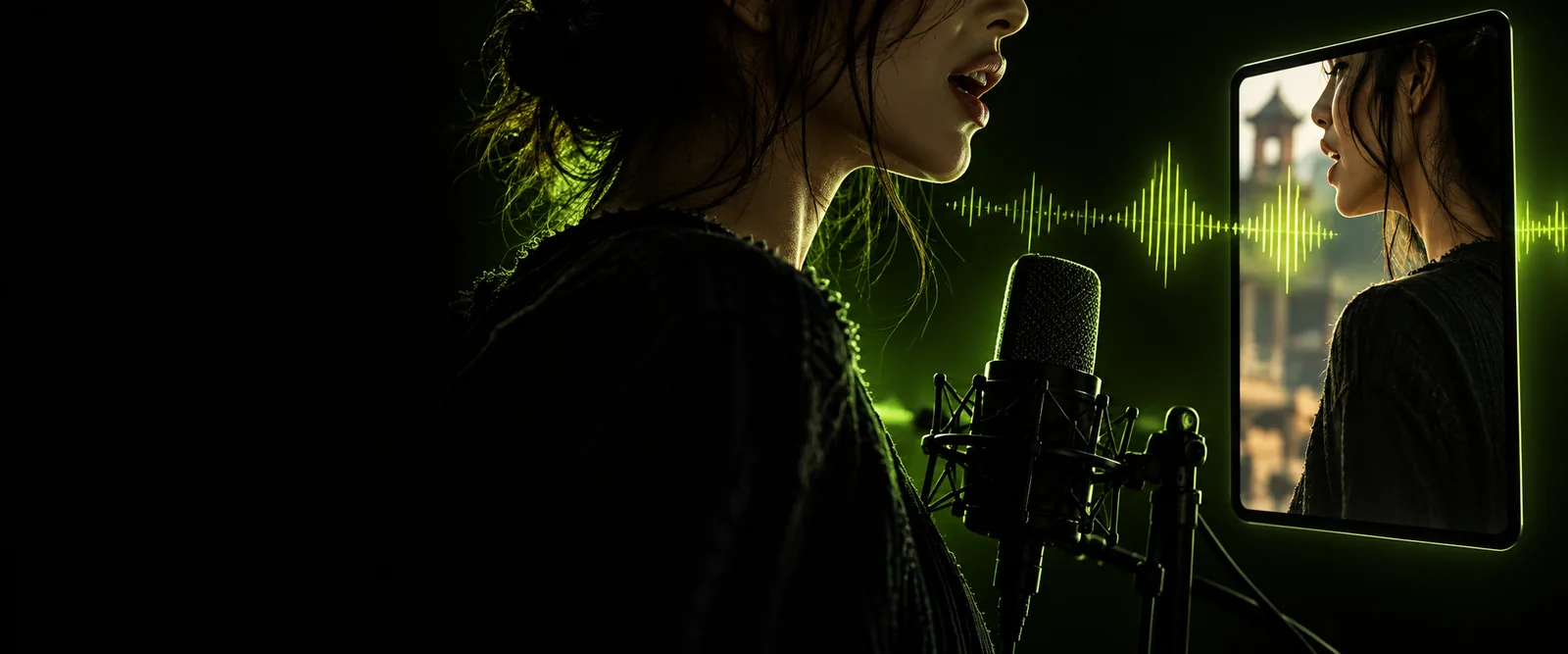
Good lip sync depends on more than moving a mouth. These three checks give you a useful way to judge any online workflow.
Use a front-facing subject with a visible mouth and steady framing. Hands, microphones, dramatic angles, or quick cuts can make alignment harder to judge.
Write a brief line or select clean audio, depending on the tool’s available inputs. Pauses and changes in speaking speed should sound intentional before you assess the visuals.
Watch at normal speed, then replay consonants and pauses. Check whether the mouth closes when speech stops and whether the expression still suits the voice.
Before starting, decide whether you have an existing video, a still photo, or only an idea. The right workflow depends on that starting point.
A promising preview is not just a moving mouth: speech, pauses, facial expression, and framing should work together.


These images illustrate what to inspect; they are not a verified before-and-after output from the linked tool.
An online result may be useful for a draft while still needing revision before publication.
A tool may allow a preview but restrict exporting, clip length, resolution, or repeated attempts. Availability can also change.
WorkaroundRead the current terms and test a short sample before committing to a longer project.
Side profiles, hair, props, and low-resolution footage leave less visible information for judging speech alignment.
WorkaroundStart with a clear, front-facing shot and keep the mouth in frame.
Background music, clipped words, and inconsistent volume can make a synchronized face feel unconvincing.
WorkaroundClean the recording or rewrite the line before trying another visual pass.
A convincing result does not establish permission to use someone’s face, voice, music, or footage.
WorkaroundUse material you own or have permission to use, and check the intended distribution rights.
Neither route is automatically better. Compare the controls you need, then verify the terms and capabilities of the specific tool you choose.
Browser-based workflow
Open a tool in a browser; available inputs vary.
Installed editing workflow
Install software and prepare a local project.
Browser-based workflow
Check how uploads and saved work are handled.
Installed editing workflow
Check local storage and project-file requirements.
Browser-based workflow
Typically depends on an internet connection.
Installed editing workflow
Some editing tasks may work offline; features vary.
Browser-based workflow
Inspect the controls offered by the chosen tool.
Installed editing workflow
Timeline editing may offer more manual adjustment.
Browser-based workflow
Verify current preview, export, and usage terms.
Installed editing workflow
Verify software, feature, and export terms.
Browser-based workflow
A quick test when a browser workflow suits your materials.
Installed editing workflow
A project that needs repeated, hands-on editing.
Keep the first line brief, use a clearly visible speaker, and review pauses as carefully as spoken words. The linked creation platform has its own current options and terms; check them before planning a final export.
Browser-based tools can provide that workflow, although their inputs and controls differ. Check the chosen tool’s current requirements before preparing your footage.
Not necessarily. Some services distinguish between trying a workflow, viewing a preview, and exporting a finished file, so confirm the current terms before you begin.
Try a short speaking line and a well-lit, front-facing subject with an unobstructed mouth. A small test makes it easier to spot timing problems before working on a longer scene.
Speech with clipped words, long pauses, or background noise can be difficult to evaluate. Replay the result at normal speed and check the start and end of each phrase before changing your source material.
A tool’s ability to produce a clip does not give you permission to use the underlying material. Get the necessary consent and rights, and review the rules of the platform where you plan to publish.