Set the spoken line
Keep the sentence short enough to review repeatedly. Record or select the dialogue, then note any pauses, emphatic words, and visible breaths.
Character workflow
A convincing speaking character needs more than a moving mouth. Start with clear dialogue, match visible mouth changes to the sounds, and check the result in context before you publish.
Partner workflow: Vidione creates paid talking-avatar video from a photo, script and voice, or a single AI video shot after sign-in and subscription. It cannot change the speech or lip movements in an already recorded video. These links transfer no footage or prompt.
Vidione generates a talking avatar from a photo, script and voice after sign-in and subscription; it does not re-dub existing video. This guide transfers no footage or prompt.
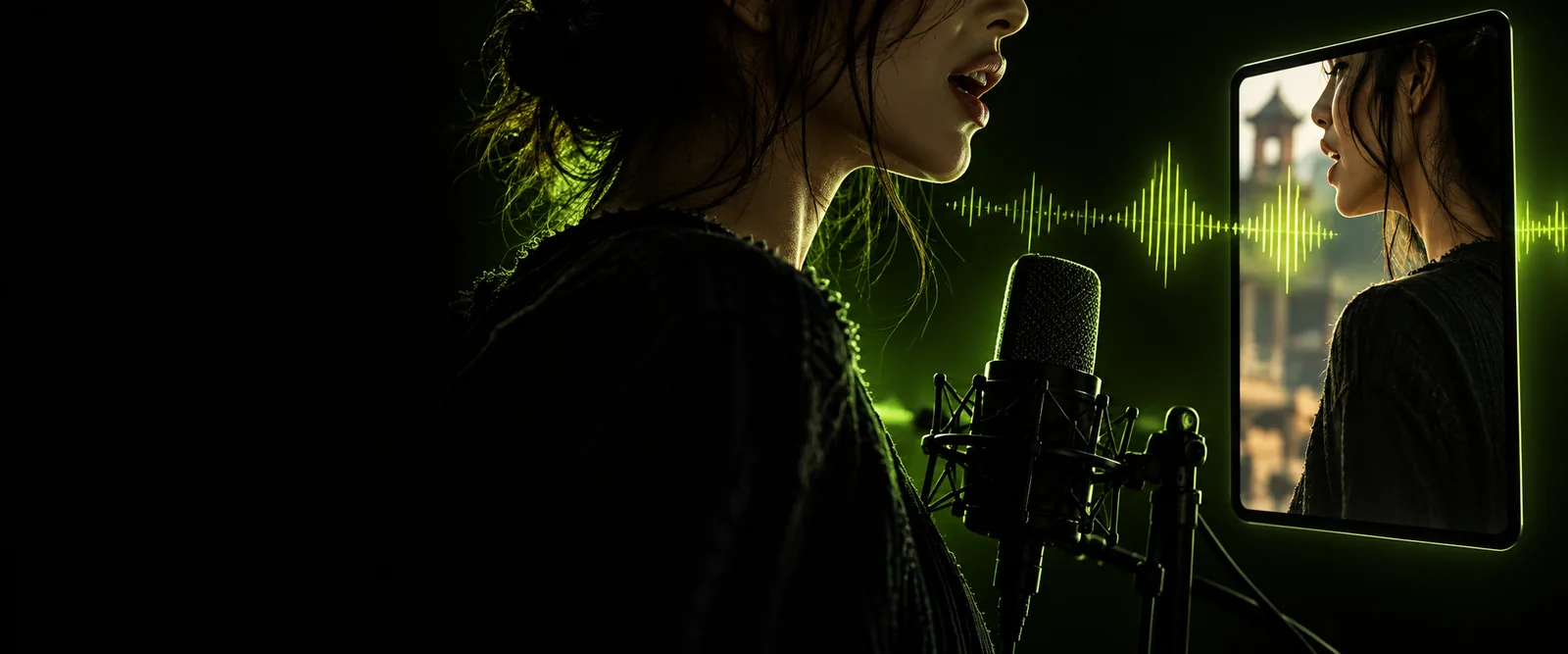
The right handoff depends on where the character will be edited. These related workflows help you choose a starting point before you build the scene.
Start with a still portrait when you need a speaking image rather than an editable character rig.
Explore a script-first approach when the spoken line has not yet been recorded.
Compare generation workflows when you want a character performance to use as a visual reference.
Whether you animate in Blender, Adobe Animate, or another editor, a clear reference makes mouth timing easier to judge.
Keep the sentence short enough to review repeatedly. Record or select the dialogue, then note any pauses, emphatic words, and visible breaths.
Listen for the moments when lips close, open wide, or round. Mark those changes against the audio instead of assigning a new mouth shape to every letter.
Watch at normal speed with sound, then step through frames around obvious consonants. Correct the most noticeable timing slips before refining expressions.
A rendered reference and an editable character rig serve different purposes. Check which one your project needs before moving files into the timeline.
Rendered reference
A video clip showing the speaking performance
Editable character rig
Character artwork or model, audio, and mouth controls
Rendered reference
Place the clip and confirm its sound starts at the intended frame
Editable character rig
Place audio first, then align mouth keys to audible changes
Rendered reference
Revise the source and replace the clip
Editable character rig
Adjust individual mouth shapes or keyframes
Rendered reference
Limited by what is visible in the clip
Editable character rig
Can be edited alongside the dialogue performance
Rendered reference
A quick visual reference or a finished scene element
Editable character rig
A scene requiring detailed expression and timing edits
Rendered reference
Check playback, framing, and audio alignment
Editable character rig
Check mouth keys, expression changes, and final render
Most visible problems appear only after the scene is played with sound. These checks keep the fix close to the source of the error.
A speaking portrait looks expressive, but its first mouth movement begins before the voice.
Align the visual start to the audio and replay the opening phrase. A photo lip sync video maker workflow is useful when the source is a still image, not a rig.
photo lip sync video makerThe character is ready, but a rewritten line no longer matches the recorded dialogue.
Confirm the final wording and audio before refining mouth cues. Compare a text to lip sync ai free workflow if the line still needs a voice reference.
text to lip sync ai freeImported footage plays correctly, yet the mouth feels disconnected from head motion.
Review the complete shot instead of the mouth crop alone. A lip sync animation generator can provide a performance reference, but an editable rig needs its own timing pass.
lip sync animation generatorFor Vidione’s supported talking-avatar workflow, bring a portrait photo, write a short line and choose a voice after subscribing. A rigged lip-sync animation needs another tool; review an avatar clip’s speech and expression before using it.
It is the process of coordinating a character's visible mouth movements with spoken audio. Animators also consider pauses, facial expression, and head movement so the dialogue feels part of the performance.
Not if you only need a rendered speaking-character clip. A rig becomes important when you need to revise mouth shapes, expressions, or movement directly inside your animation project.
For an editable character, establish the audio timing first and animate against it. If you are importing a finished video reference, place the clip on the timeline and check that its picture and sound remain aligned.
A conspicuous mouth closure or wide-open shape may be landing on the wrong sound. Watch the shot with audio at normal speed, then inspect those moments frame by frame; also check whether the character's expression supports the line.